

A Beginner’s Guide to Building and Compiling HPE Morpheus Enterprise Plugins
November 19, 2025Introduction
HPE Morpheus Enterprise is a hybrid cloud platform that unifies diverse products and technologies into a consistent workload-lifecycle orchestration, governance, and control framework.
This makes HPE Morpheus Enterprise ideally positioned to integrate with a broad ecosystem of cloud-related service vendors. These integrations are enabled through technology-specific plugin providers. HPE Morpheus Enterprise is extendable with custom plugins for clouds, task types, UI tabs, reports, approvals, cypher, IPAM, backups and more.
This article covers the process of generating and compiling a basic HPE Morpheus Enterprise generic plugin project on Windows 11. To understand how the workflow fits together, this blog will cover:
- Generating a new project using the plugin code generator
- Unzipping and opening the project in an IDE
- Exploring main plugin file components
- Compiling the plugin on Windows
- Uploading the compiled plugin to HPE Morpheus Enterprise
- Compiling the plugin remotely on Linux, using Visual Studio Code
- Compiling the plugin using Docker
JDK Prerequisite
For the labs in this document, we assume a Windows 11 host with internet access and Visual Studio Code installed.
You’ll also need to have Java JDK 11 or 17 installed. The vendor distribution of Java is not important — both OpenJDK and Oracle JDK are supported.
When using JDK 17, the project’s compile compatibility level is set to version 1.11 to maintain compatibility with earlier environments.
Open a Windows command prompt (Press Win + R or click Start, type cmd, press enter)
To install OpenJDK 17, run the following command and click yes to provide administrative privileges where needed:
winget install jdkbuild.openjdk.17.jdkTo verify your OpenJDK install, run:
java -version
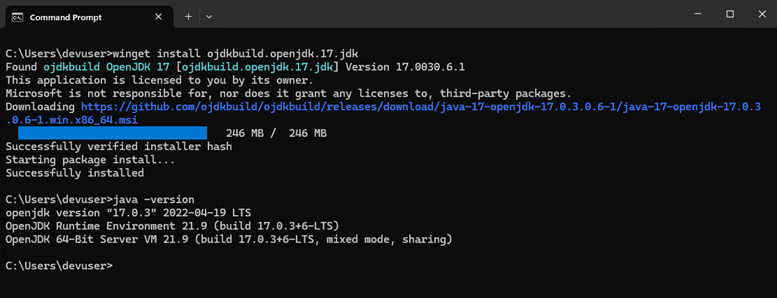
Another build dependency is the Gradle build system. This will automatically be provided by the Gradle wrapper configuration under the gradle directory of the project we will generate.
Creating a plugin project
Creating a project that compiles code into usable plugins can be a daunting task, especially for developers who are not familiar with Java, Groovy, or Gradle.
To simplify this process and make it easier for potential plugin builders to get started, the HPE Morpheus Enterprise engineering team created the Morpheus Plugin Code Generator.
We’ll use this handy tool as a starting point to create our new plugin project. The preferred source language for HPE Morpheus Enterprise plugins is Groovy.
Groovy features a concise, flexible syntax and includes many helper methods that make coding easier. It’s fully interoperable with Java and compiles to the same JVM bytecode.
Using a web browser, navigate to https://developer.morpheusdata.com/. Click the Get Started Now button.
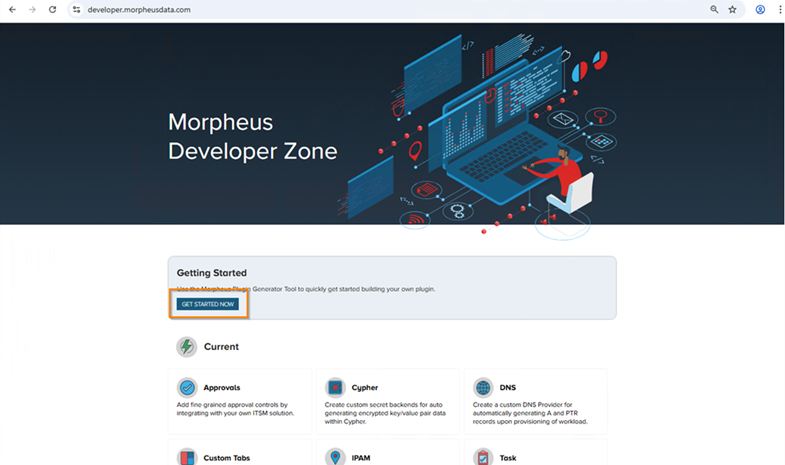
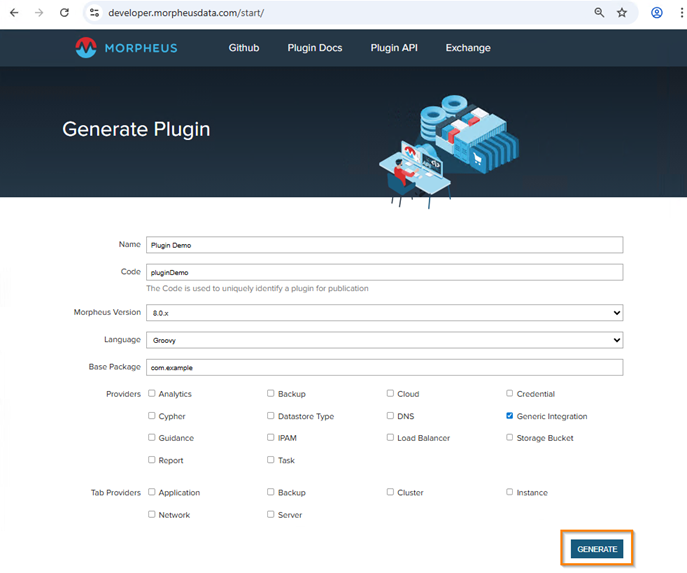
For this lab, we provide the following field values:
- Name: Plugin Demo
- Code: pluginDemo
- Providers: Generic Integration
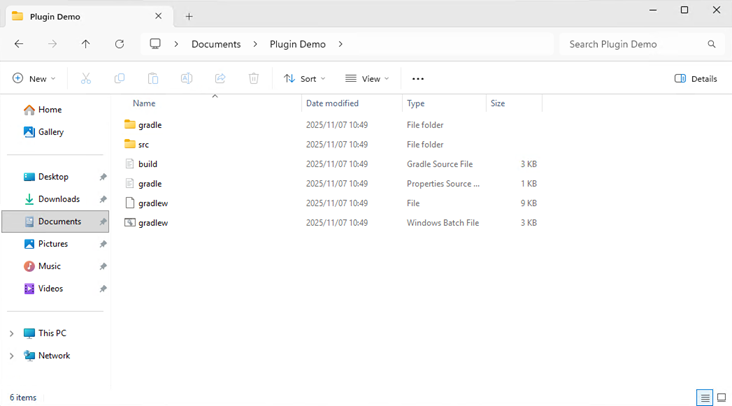
Unzip the plugin project for use in an IDE. For this example, we will unzip the plugin to the Windows Documents folder.
Authoring plugin projects in an IDE
Adding logic and complexity to a working plugin is an exercise in object-oriented programming. Writing code in plain text editors can be tedious, time-consuming, and error prone. To make development easier, we use an IDE such as Visual Studio Code.
Although we use Visual Studio Code in this example, several more powerful Java/Groovy IDEs are available, including IntelliJ IDEA, Eclipse, and NetBeans.
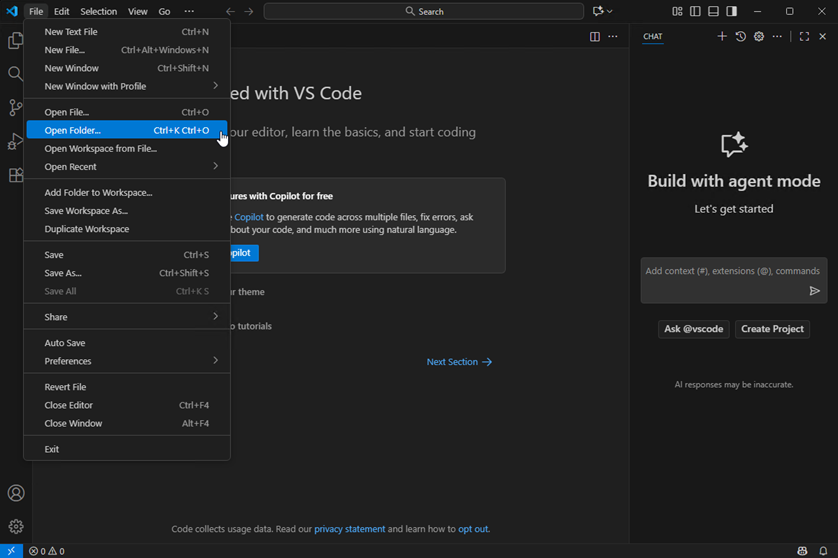
Open Visual Studio Code and select Open Folder from the File menu.
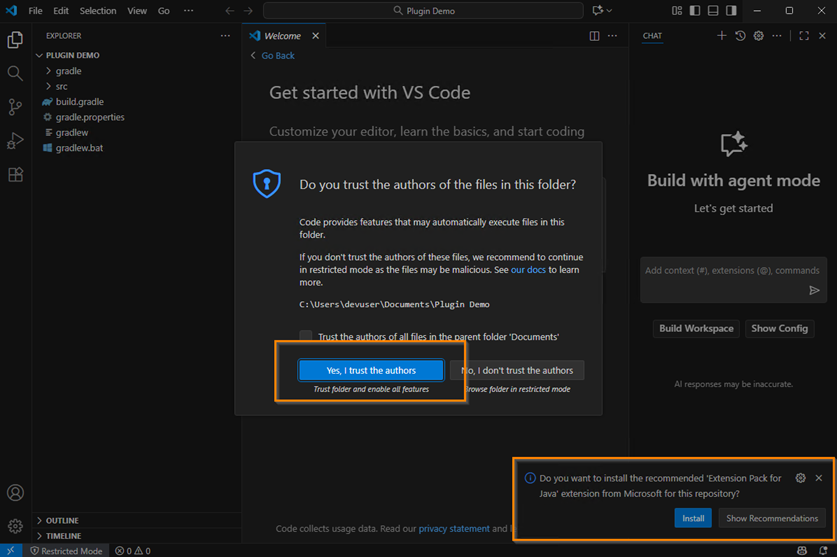
Respond Yes to the trust prompt. If this is the first project opened of its type, VS Code will prompt for the installation of java related extension packs. Respond by clicking Install.
The extension pack will take a while to install and build/configure the project. This can be seen at the bottom left of the VS Code window.
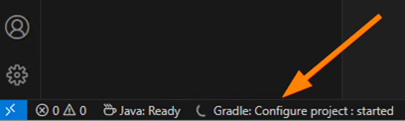
Wait for the Gradle: configure project message to disappear and the Java: Ready message to remain.

Open the Explorer view by clicking the corresponding icon at the top left. The Welcome and any open Extension tabs can now be closed.
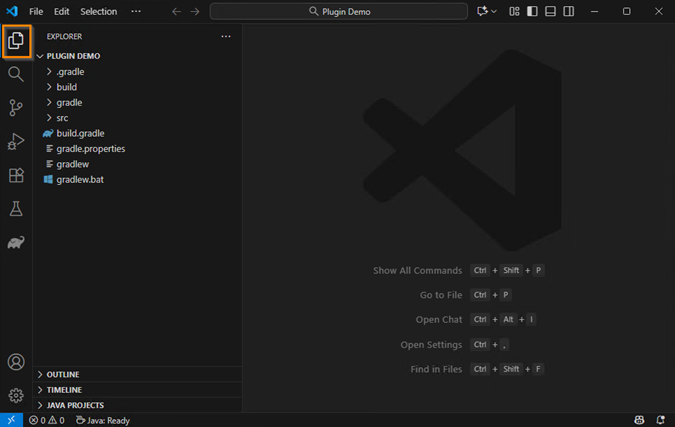
Important project files
We will explore some of the most important files briefly. In different article, we will cover the project structure and the build files in more detail.
- gradlew.bat\ OS shell wrapper script used for compiling the plugin on Windows.
- gradlew\ OS shell wrapper script used for compiling on Linux.
- gradle.properties\ Variables used in the in the gradle build. Typically version numbers.
- build.gradle\ This is the actual build script. Build dependencies are declared here. This configures how the .jar file is built.
- PluginDemoPlugin.groovy\ i.The main plugin entry point class that HPE Morpheus Enterprise will load.\ ii. Extends com.morpheusdata.core.Plugin\ iii. Specified in the build.gradle file as the Plugin-Class\ iv. Registers provider classes that add functionality to the plugin
- PluginDemoGenericProvider\ A provider class that add generic functionality. Many types of providers can be added to plugins.
- pluginDemoShow.hbs\ Handlebars markup to display UI elements in the HPE Morpheus Enterprise web UI.
Compiling locally on Windows
As a first compile option, we will look at the local Windows environment.
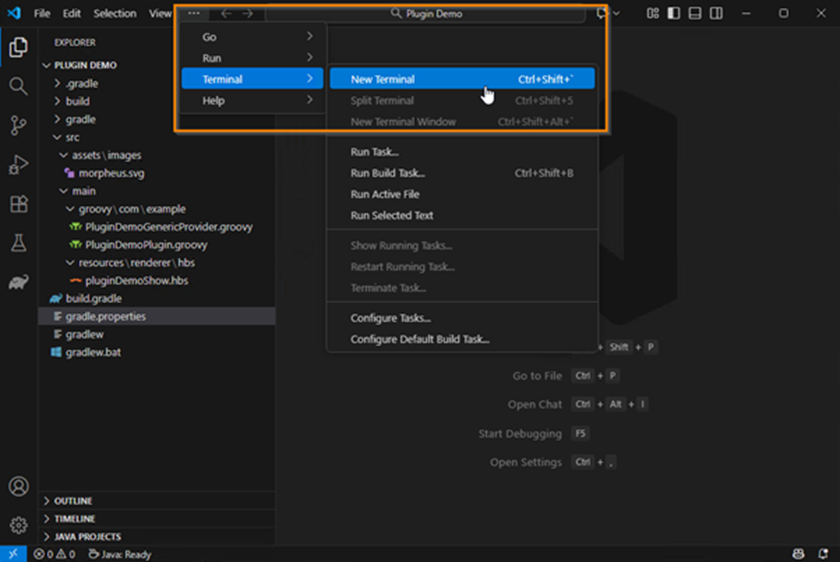
Start by opening a terminal. You may need to click the ellipses to exposes the entire menu.
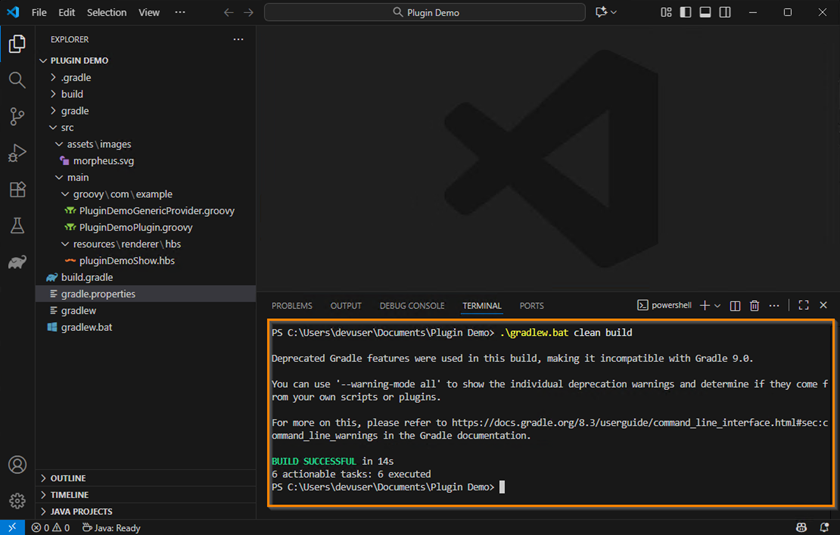
Run the Windows wrapper batch script command:
.\gradlew.bat clean buildThe shadowJar parameter can be used instead build.
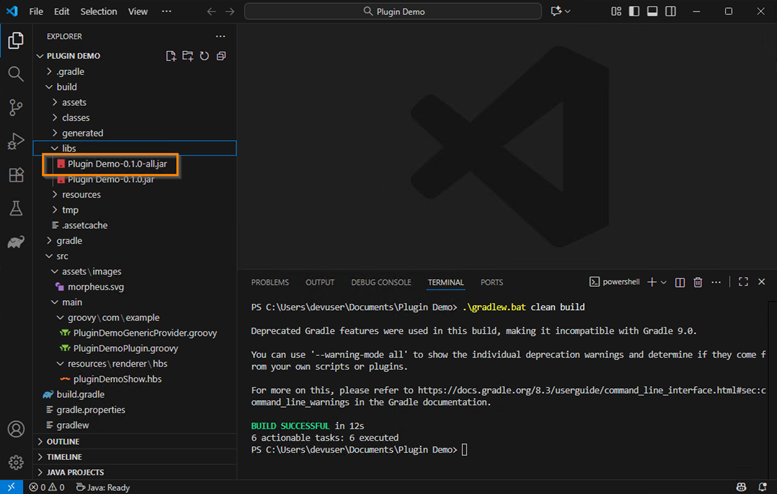
Find the generated .jar file that was generated on successful build under the build > libs directory. Use the .jar file suffixed with -all. This file contains all compilation dependencies and is therefore safer to upload into HPE Morpheus Enterprise.
Upload the plugin to the UI by navigating to Administration > Integrations > Plugins > Add. Drag the file onto the dialog or browse to the .jar file and click Upload.
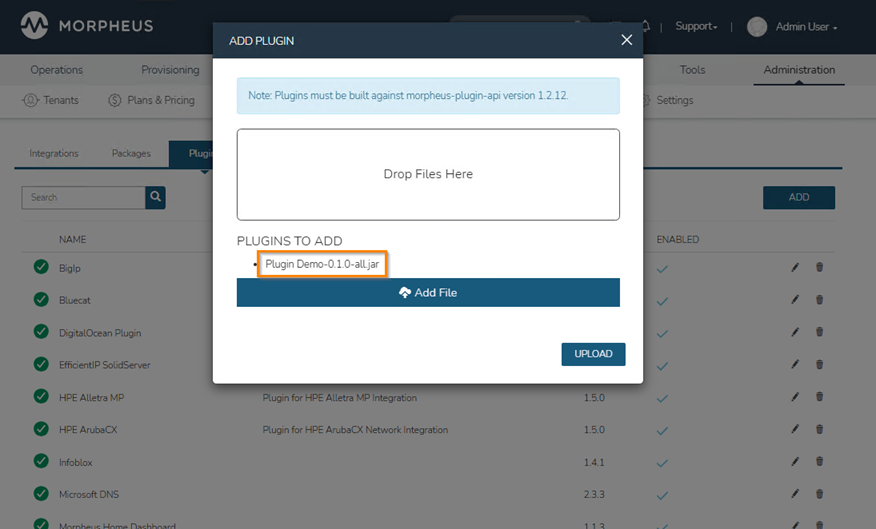
A successful upload will add the plugin name to the list:
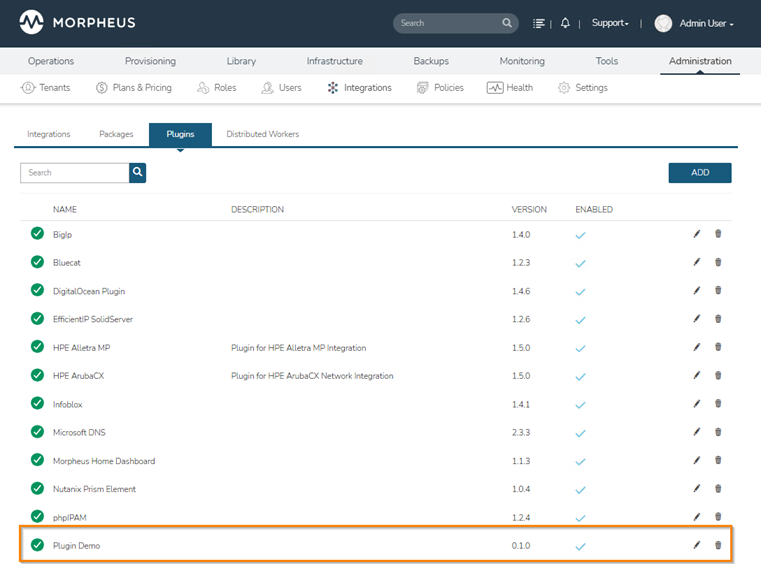
To view the registered providers of an uploaded plugin, click the edit pencil to view the dialog.
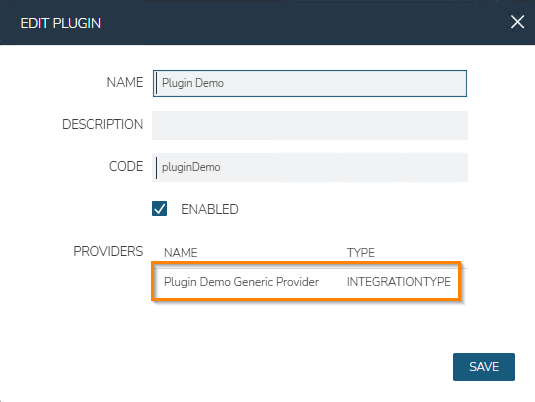
Compiling the plugin on Linux
Another compile option is to connect to a remote Linux machine using an SSH session from Visual Studio Code. As a prerequisite for this, unzip the initial project to your Linux machine and ensure remote SSH connectivity. The Java JDK v17 will need to be present in this environment as well.
Click the Open Remote Window at the bottom left of the Visual Studio Code window. In the top popup option box, choose Connect to Host.
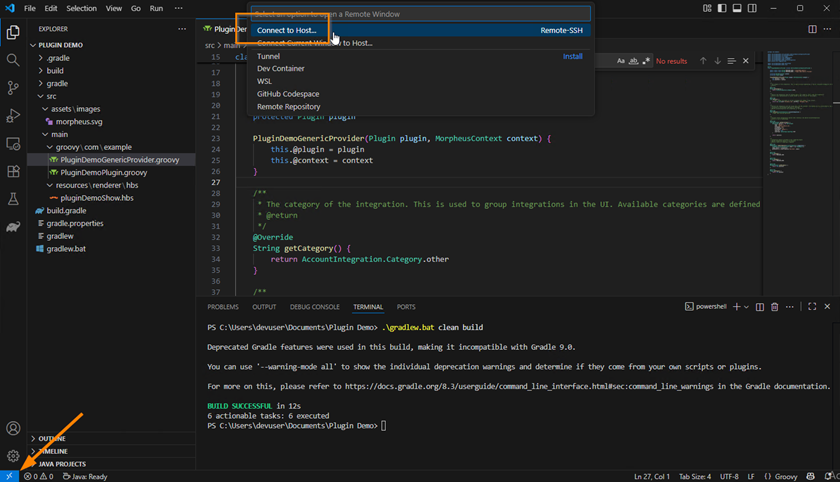
Choose '+' Add New SSH Host and enter your user@host combo. Choose any SSH configuration file on the system to save connection details to.
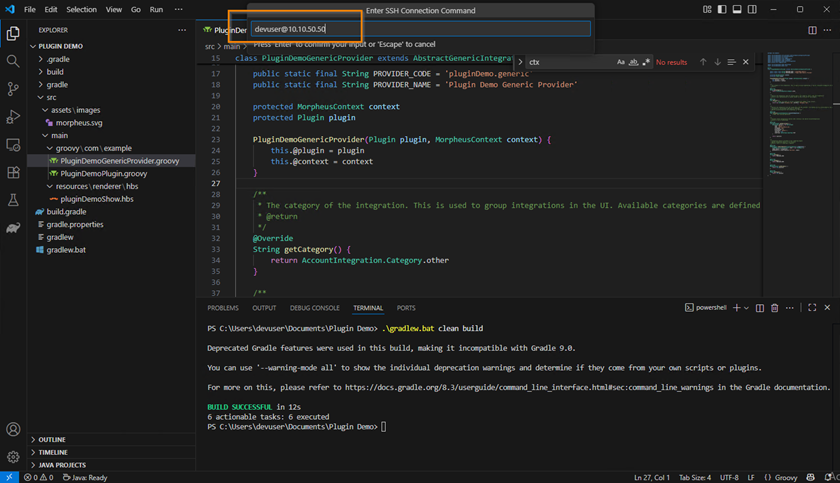
Click the Open Remote Window at the bottom left of the Visual Studio Code window again. Choose Connect to Host again. This time, select the host that was entered and saved in the previous step.
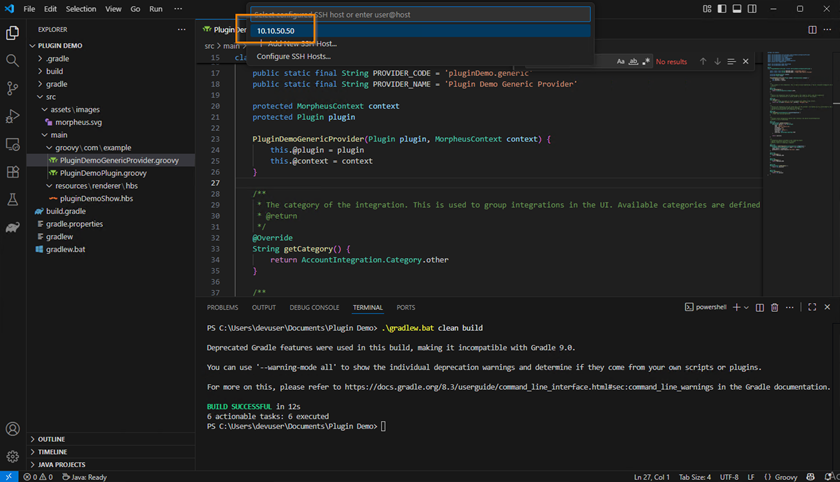
Satisfy any possible certificate security prompts and enter your password when prompted. A new Visual Studio Code window will be opened. As with the previous exercise, Open Folder from the main File menu.
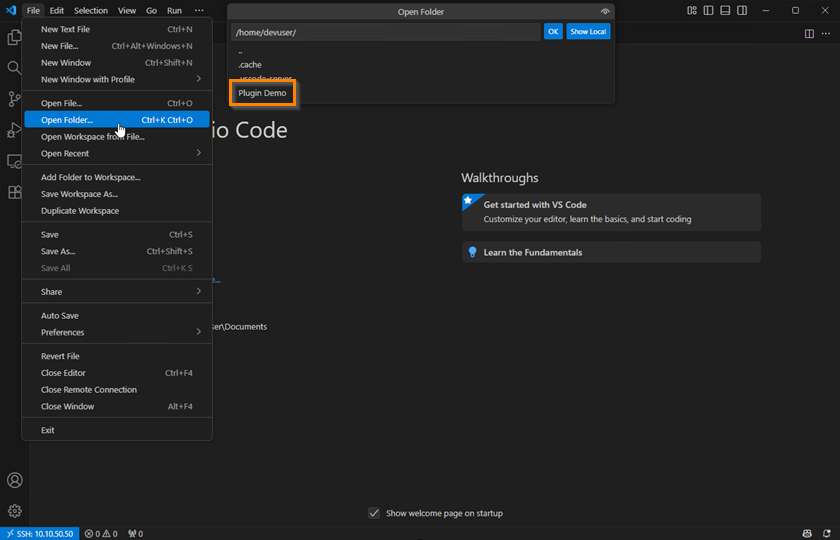
Select your Plugin Demo folder and click OK. You will be prompted to supply the password again. As before, allow for the installation of the required Java Extension packs and wait for the Gradle: configure project message to disappear.
The Java: Ready status message should remain in the bottom status bar.
From the top main menu, choose terminal > New Terminal.
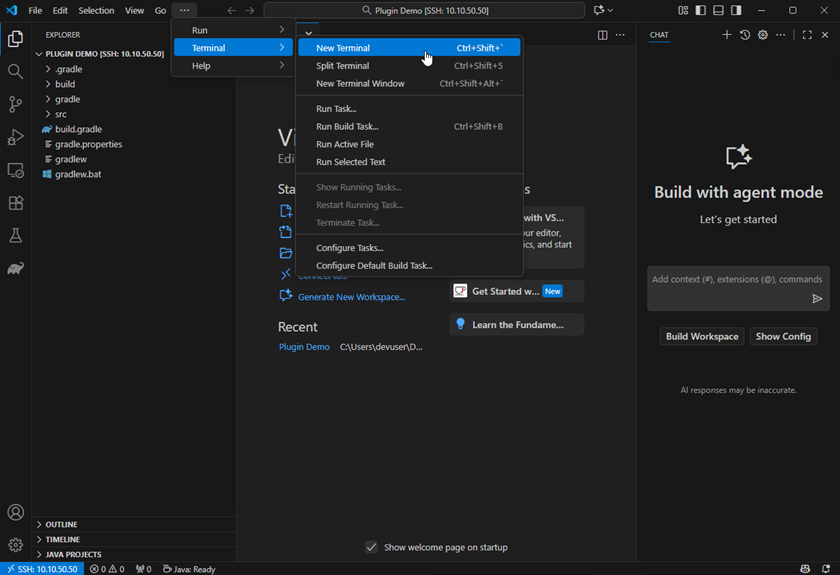
Ensure that the gradle wrapper script is executable by running the following:
chmod +x ./gradlewThis time, we run the gradlew script, instead of gradlew.bat.
./gradlew clean build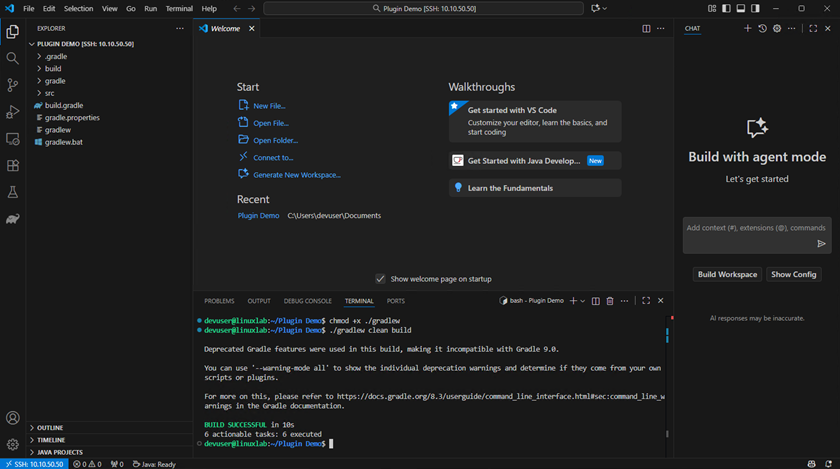
Compiling using Docker
To avoid the need for a dedicated local development environment or specific JDK installations, you can compile the plugin inside a Docker container. Using the official Gradle image, the build process runs in an isolated environment that already includes the correct JDK version and Gradle tooling. This ensures consistent results across different systems and eliminates dependency issues.
The prerequisite to this is a working Docker installation.
sudo docker run --rm \
  -u "$(id -u):$(id -g)" \
  -v "$PWD":/home/gradle/project \
  -v gradle-cache:/home/gradle/.gradle \
  -w /home/gradle/project \
  gradle:8.10.2-jdk17 \
  bash -lc "chmod +x ./gradlew && ./gradlew clean build"
Next steps
From here, we can explore the mechanics of the interfaces exposed by the HPE Morpheus Enterprise Plugin Core. These interfaces are organized into various provider types, each defining a specific kind of integration point within HPE Morpheus Enterprise.
In essence, a provider type represents a particular extension area in the platform — such as a custom tab, analytics page, dashboard widget, or custom report. These allow developers to inject new functionality directly into the UI or automation workflows.
At the more advanced end of the spectrum are provider types that model core infrastructure components. These include integrations for clouds, networks, storage systems, and many others. Such providers tend to be more complex because they interact deeply with HPE Morpheus Enterprise’s provisioning, synchronization, and lifecycle management layers. Understanding how these provider types fit together is key to building powerful, production-grade plugins.
Explore the following resources for more information on the different plugin/provider types:
- https://developer.morpheusdata.com
- https://share.morpheusdata.com (follow the repository link under the plugin details to see the source code of a plugin)
- https://github.com/hewlettpackard
- https://youtu.be/1twoNvPoEV4?si=elUEzCYGo88TIffX
Related

Announcing HPE Terraform provider v1.5.0—and the road since v1.1
Jul 24, 2026
Provisioning Kubernetes clusters using app blueprint with Ansible integration in HPE Private Cloud Enterprise
Oct 3, 2025
HPE HVM and HPE Morpheus Software—VM essentials—How do I migrate over?
Jun 3, 2026
HPE Morpheus Enterprise Software enhances its Kubernetes service with new features
May 6, 2026
Managing Morpheus Plugins via REST API
Nov 6, 2024Migrate to the HPE Terraform provider with confidence using tfmigrator
Jul 10, 2026Morpheus Extensibility with Plugins
Nov 6, 2024