Hybrid observability service – Part 3: Enabling the monitoring of agentless SSH-enabled systems in HPE GreenLake Flex Solutions
May 26, 2025In my previous blog post, I introduced the steps to install and configure a gateway collector appliance for a specific tenant client account in the hybrid observability service powered by HPE OpsRamp Software in HPE GreenLake Flex Solutions.
The gateway collector appliance is a prerequisite to enable the discovery of infrastructure devices in HPE GreenLake Flex Solutions before they can be monitored.
Continuing from the second part of this series, I’ll now explore:
- How to deploy an integration module to discover an agentless SSH-enabled server running Linux as the operating system.
- How to apply a monitoring template to non SDK resources such as the agentless SSH resource to monitor it.
In the last Part of the blog series, I’ll explore the observability of physical devices and their monitoring using dashboards to visualize the collected metrics in charts.
Applying integration modules and monitoring configuration to discover and monitor resources
Integration modules
Once the gateway collector appliance is installed and configured to communicate with the hybrid observability service in the cloud, the next step is to install Integration modules to discover IT infrastructure devices. For example, compute, storage, and network equipment. Further, integration modules enable data exchange between the service in the cloud and IT infrastructure devices included in the HPE GreenLake Flex Solutions.
Once a resource is discovered, you can apply a Monitoring Template to periodically track the resource's performance, availability, and health metrics, based on configured metrics.
Monitoring Templates
Monitoring is a method for periodically querying IT resources and forwarding resource metrics to the service for processing and analysis. Monitoring Templates are used to apply standardized monitoring configurations to resources. These templates define the metrics and thresholds that will be monitored.
The hybrid observability service powered by HPE OpsRamp comes with a library of pre-configured Global Monitoring Templates that cover popular resource types. These built-in Global Monitoring Templates apply automatically through Device Management Policies to a wide range of resource types such as Operating System (Linux, Windows), compute servers, network devices, storage arrays, applications, virtualization and databases.
Device Management Policies
Device Management Policies are rules that automate managing and monitoring resources after discovery.
There are predefined Global Device Management Policies available for common platforms and device types. These built-in policies are designed to help you automatically bind the Monitoring Templates to discovered resources based on matching criteria (for example, Native Type = Linux, Operating System contains CentOS, Make = HPE).
There might be some scenarios where you need to define a Monitoring Template and apply it either manually to a specific resource or automatically via a Device Management Policy to monitor a set of resources of the same type. For example, discovered agentless resources (also referred to as Non SDK resources) require a Monitoring Template to be defined and applied manually or via a Device Management Policy to a single resource or a set of resources.
Note: You can navigate to Setup > Setup > Clients to edit the client account and check the Enable Global Policies checkbox to automatically apply a Global Device Monitoring Policy, if one exists, for Non SDK resources such as the SSH-enabled system. In this post, I have not enabled this option for the client account to explore how to clone a built-in Global Monitoring Template, customize it, and assign it to the Linux system to enable its monitoring.
Agentless discovery and monitoring of SSH-enabled devices
Let us start by deploying an Integration module and creating a Monitoring Template to discover and monitor an agentless SSH-enabled system.
The hybrid observability service supports agentless monitoring. Agentless monitors use the gateway collector appliance to discover resources via SSH and monitor IT infrastructure agentless resources to track their health, performance, and availability.
The SSH Agentless Integration module discovers Linux/Unix-based systems without installing an agent, by securely connecting to the device over SSH via the gateway collector appliance. The Monitoring Template then needs to be assigned to the target agentless system for monitoring.
Requirements:
- A gateway collector appliance is installed and registered.
- The gateway collector appliance has network access (through SSH protocol – typically on port 22) to connect to the target Linux server.
- IP address of the target SSH-based machine(s).
- SSH credentials (username and password) of the target machine.
- A Monitoring Template and Device Management Policy to monitor the target resource through the gateway collector appliance and collect data for monitoring the metrics and resource availability.
Install the Linux agentless integration module in a client account
As Partner Administrator, let’s install an agentless SSH Integration module for the client account to discover an HPE ProLiant server added in the HPE GreenLake workspace devices inventory. This compute server runs the Linux operating system. The Linux OS agentless SSH Integration module facilitates agentless discovery of SSH-enabled devices using the gateway collector appliance. Here is the procedure:
To discover a compute resource, select the client account, then select Setup in the navigation bar, and select Account in the drop-down menu to navigate to the account details page.
Select the Integrations tile to access the Integrations App store and click +ADD to display all the integration applications available for the client account. If this is your first integration module you want to install, click +ADD directly from the Integrations tile.
Filter the list of available integrations by a variety of Categories or use the Search feature. For agentless SSH-enabled devices, you can filter through category OS or in the Search field, type SSH.

Choose the integration module to install the Linux OS – Agentless (SSH) by selecting ADD.
Navigate to the agentless-SSH configuration page. The first step in the process is to input Basic Account Information. Select +ADD at the right of the Configuration tab, then enter a Name for the configuration. For example, Name = SSH Compute integration.
In the Host Name/IP Address box, enter an IP address, or the hostname of the target agentless system.
Select the SSH Credential box and click +ADD to create new credentials to discover the agentless server. Specify:
- The credential name and a brief description.
- The authentication type (typically Password) and appropriate credentials (username and password).
- The SSH port (typically port 22).
- Check the box Secure.
- Finally, click ADD to create the SSH credential.
Note: You can also select existing SSH credentials if one already exists and that applies to your resource.

In PERFORM ACTIONS, select the Manage Device checkbox.
Next, define a Discovery Schedule. The schedule ensures that all resources and components inventory are in sync between the hybrid observability service and the agentless (SSH) server. You can select hourly, daily, weekly, or monthly schedule.
Now that all the configuration details are entered, select ADD to save the configuration of the integration module.
Click NEXT and select a collector profile, the gateway collector appliance that will be used to install the integration module and discover the agentless resource.
Click FINISH to complete the installation of the integration module and initiate the resource discovery.
Select the Integrations tile, and click on the Linux OS – Agentless (SSH) tile to check the status of the agentless SSH integration module:
- The gateway collector appliance displays with the status RUNNING.
- Select the gateway collector appliance to check the status of the agentless SSH integration module. The discovery status should be Completed.
- Based on your discovery schedule, the value for the devices might be set to 0. In this case, select the ellipsis (...) on the right and select Discover to discover the device manually.
- Click DONE.
- Connect again to the SSH integration module and select the gateway collector appliance. You should see now a device discovered in Devices tab. If a device is not discovered, ensure the prerequisites are fulfilled: the gateway collector appliance is installed and registered successfully, and it can connect to the target agentless SSH-enabled server.
- Click on the 1 for the devices to visualize the resource information for the Linux server. Notice the status is UNDEFINED (color indication brown). The reason is that in our case, no default Global Monitoring Template is automatically assigned to an agentless SSH-enabled system. In the next step, you will define a monitoring template and assign it to the agentless device.

- Select the server's name to collect attributes of the Linux server device such as the Operating System (CentOS), Native type (Linux) and Make (HPE). You will need this information in the next step to configure the filter criteria for the monitoring policy of the agentless system.
Define a monitoring template and assign it to agentless devices
When the option Enable Global Policies for non SDK resources is not enabled for the client account, and an agentless system is discovered through the gateway collector appliance using the appropriate Integration module, you need to define and apply a Monitoring Template for the gateway collector appliance to monitor the device for a specific client account.
The built-in Global Monitoring Templates are not editable. Copy an appropriate built-in Global Monitoring Template and customize the metrics, thresholds, and resource availability monitor for the most important metric(s) for the resource to meet the IT operational needs for the client account.
Note: The Resource Availability documentation refers to the uptime and operational status of a monitored resource. It tracks whether the resource is running or experiencing downtime based on the metrics with the availability monitor applied.
You can then manually assign the customized Monitoring Template to a particular resource, or via a Device Management Policy to automatically bind your Monitoring Template to the discovered agentless devices.
Let’s see how to define a Monitoring Template and the methods to assign it to the discovered agentless Linux device(s).
The gateway collector appliance discovered the agentless SSH system. It will monitor the agentless SSH system using a Monitoring Template. Therefore, let’s select a Global Monitoring Template with a name that contains the word gateway and clone this template:
Select a client account.
Go to Setup > Setup > Monitoring > Templates and click Advanced.
Note: This feature will be made available under Setup > Account > Monitoring in an upcoming HPE OpsRamp releases.
- Search for Scope Global Templates and enter gateway or gateway - linux as the Template Name. Then click Search at the bottom of the Advanced search.

- Select the latest version of the Global Monitoring Template Gateway - Linux OS Performance Remote Monitoring available. You can click the arrow on the left of the template to visualize the metrics and thresholds.

Select the Template checkbox. Click Copy to clone the template and click Yes to duplicate the template.
Select the client account, give a Name to your template. Use the client account name in the Template Name to identify the template for a particular client account easily. For example, DreamCompany-Agentless-Linux-Performance. Click Save.
To list the Monitoring Templates for the client account, go to Monitoring > Templates > Advanced Search, select Client Templates for the Scope. You can now customize the template to adjust some parameters such as the tags, metrics such as the warning or critical thresholds, and the availability monitor per your IT operational requirements.
To monitor the resource, enable an Availability Monitor for a metric (for example, os.uptime).
- Select the cloned Monitoring Template and click Edit at the top right of the template.
- Click Next at bottom of the page and select the metric that is more important for the resource by clicking on the pencil to the right of the metric.
- Check the Apply Availability Monitor checkbox and click Update.
- You can also modify the warning and critical thresholds of any metric per your operational requirements.

- Finally, click Save to save the Monitoring Template.
You can now assign the Monitoring Template to the agentless resource either manually or via a Device Management Policy.
You may want to assign the Monitoring Template manually if you have a single resource. If you are planning to monitor a set of resources of the same type, it is recommended that you apply the Monitoring Template via a Device Management Policy. The policy will automatically apply the resource policy to the resources based on a set of filter criteria you specify in the policy.
Let’s walk you through the two methods to apply the Monitoring Template to a resource:
Method 1 — Manual assignment to a particular resource
Select the client account and go to Infrastructure > Search.
Select your Linux server.
Check the checkbox of your server, click ACTIONS on the right, and select Assign Templates.
Search for the Monitoring Template you have just created, check the box for the Monitoring Template, and click ASSIGN TEMPLATE button.
Method 2 — Automatic assignment to a set of resources via a Device Management Policy
- Select the client account and from the navigation bar go to Setup > Setup > Resources > Device Management Policies.
Note: This feature will be made available under Setup > Account > Monitoring in an upcoming HPE OpsRamp releases.
If it is the first time you want to create a Device Management Policy, click Create New. If you have already created policies, click the option +Add to create a new Device Management Policy for the agentless SSH system. The Device Management Policy page is displayed.
Ensure the Client option is selected for the Scope and the appropriate client account has been selected. Give a policy Name (for example Agentless Linux Monitoring Policy) and ensure the Add members automatically using filter criteria checkbox is checked.
Select one or more Filter Criteria that apply to your agentless device(s) and click Show Matching Members to ensure the resources matching the filter criteria are the expected devices. For example, you can filter on Native Type and Make of the device as shown here:

In the Perform Actions section, select the Assign Monitoring Templates checkbox. A list of available monitoring templates is listed. Select the Monitoring Template you previously created and click the right arrow to move it to the Assigned Monitoring Templates column on the right.
Click Save & Run Now to assign the policy to the resources matching the filter criteria. The policy will apply to all resources that match the filter criteria you specified in the policy.
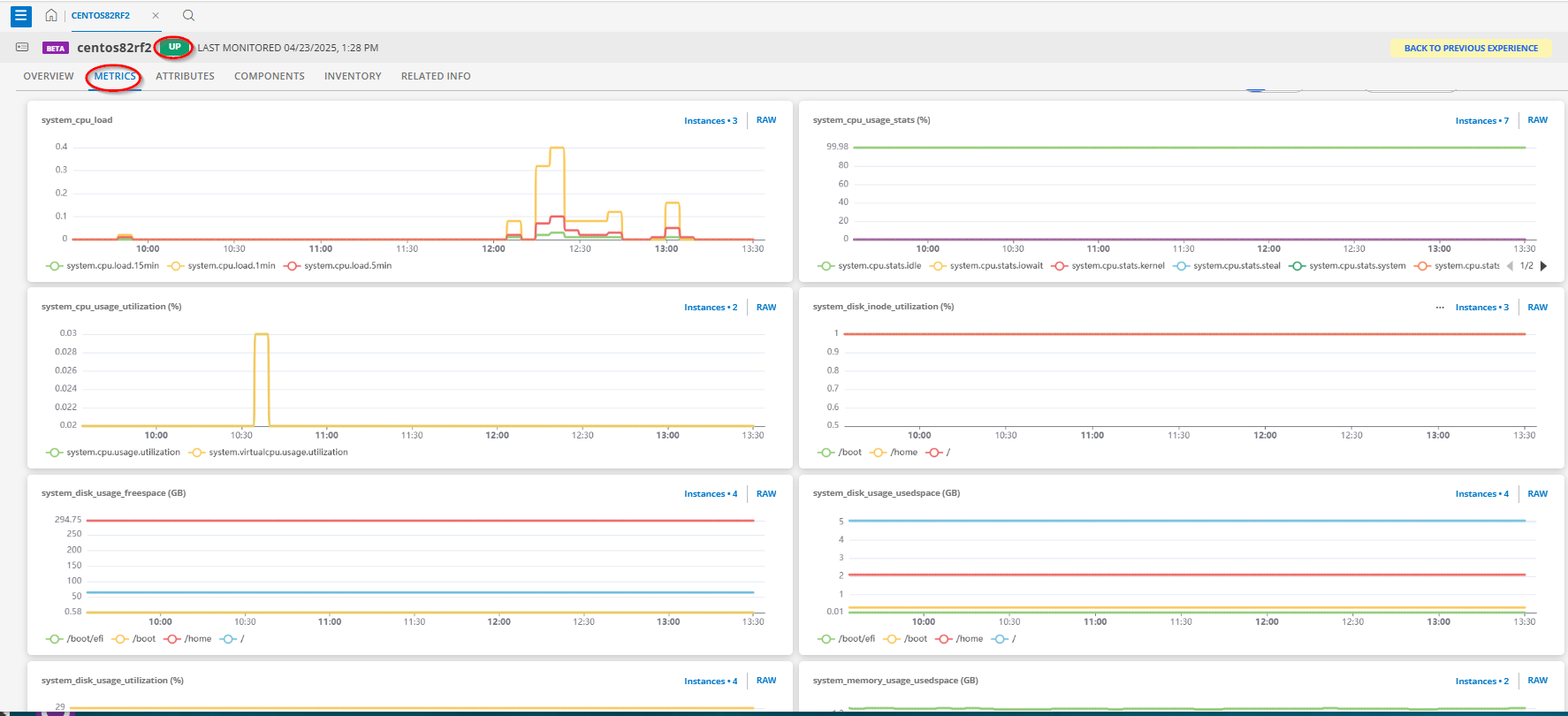
After a few minutes, check the agentless SSH device in Infrastructure > Search and select the device to check the status and the metrics. The status should now be UP (color indication is green) and you can start visualizing the metrics by navigating to METRICS tab.
Summary
This blog post walked you through the steps to set up the hybrid observability service powered by HPE OpsRamp for an agentless SSH-enabled server. With this integration service enabled, you can discover, monitor, and observe the health, performance, and availability of an agentless SSH-enabled system.
In my last part of this blog series, I’ll dive into the observability of a physical server and a storage array as we continue the journey to set up the hybrid observability service to discover and monitor, through dashboards, physical IT infrastructure devices included in the HPE GreenLake Flex Solutions contract.
There’s also a series of video tutorials on the Hybrid observability in HPE GreenLake Flex Solutions landing page that walks you through the contents described in this blog series for readers who prefer an audio-visual learning experience.
To resolve issues with HPE GreenLake Flex Solutions or hybrid observability service powered by HPE OpsRamp, contact the support team. While logged in to your HPE GreenLake workspace:
- Click Help & Support.
- Under Help, select OpsRamp or HPE GreenLake Flex Solutions.
- Click Create New Case.
Related
Hybrid observability service – Part 1: Provisioning and activation in HPE GreenLake Flex Solutions
May 22, 2025Hybrid observability service – Part 2: Initial configuration to enable the discovery of resources in HPE GreenLake Flex Solutions
May 23, 2025Hybrid observability service – Part 4: Enabling the monitoring of physical devices in HPE GreenLake Flex Solutions
May 27, 2025
Model Context Protocol (MCP): The universal connector for AI applications
Aug 12, 2025
OpsRamp OpsQL API: Fulfilling wishes for IT Ops management
Mar 10, 2025