Hybrid observability service – Part 2: Initial configuration to enable the discovery of resources in HPE GreenLake Flex Solutions
May 23, 2025In my previous blog post, I covered the steps to provision and activate the hybrid observability service powered by HPE OpsRamp Software in a HPE GreenLake cloud workspace as part of the HPE GreenLake Flex Solutions. You must complete this initial step before configuring the hybrid observability service to enable the observability of your IT infrastructure resources.
This is Part 2 of the blog series, and it explores the initial configuration of the hybrid observability service to enable the discovery of resources before they can be monitored, and metrics data collected from the resources. As requirements to enable the discovery of physical resources included in your HPE GreenLake Flex Solutions contract, I’ll start setting up the hybrid observability service by:
- Creating a client account.
- Managing user accounts and permissions for your organization.
- Installing and registering a gateway collector appliance in a virtual environment.
In Part 3 and Part 4 of the blog series, I’ll explore how to enable the observability of IT infrastructure devices included in the HPE GreenLake Flex Solutions by deploying integration modules and assigning monitoring configurations to a set of resources.
Creating a client account
When the hybrid observability service powered by HPE OpsRamp is deployed in HPE GreenLake cloud by the Workspace Administrator, the service uses a multi-tenant model associated with a partner account. A partner account is the master tenant, including Clients who each have a client account. A Workspace Administrator is the user who created the workspace and has this role assigned by default, or invited users can get this role assigned by the Workspace Administrator.
In a multi-tenant model, a client account is a tenant of a partner account. It represents a monitoring and management instance for an individual organization, a business unit, or a specific customer environment.
Note: By default, a client account is created with the name of the HPE GreenLake workspace. You may want to create additional client accounts for an individual organization, business unit, or customer environment.
To start setting up the environment, log in to the service using an account provisioned with the Partner Administrator role. The Workspace Administrator who provisioned the HPE OpsRamp service in the HPE GreenLake cloud has this role assigned by default.
Note: The other users with the OpsRamp Access role granted in the workspace will have the role GLP Invited Partner User assigned in the service.
To create a new client account:
- From the top navigation menu of HPE OpsRamp user interface, select Setup > Setup.
Note: This feature will be made available under Setup > Account in an upcoming HPE OpsRamp release.
Select Clients on the left navigation bar and click +Add to add a new client account. If this is the first client of your partner account, click Create New.
Enter the Client Name, Address, Country, and Time Zone. Contact email is also recommended. If you specify a client state, the length must be 3 characters maximum. Then click Next.
Keep the default selection for Product Package entries for Hybrid Discovery and Monitoring, Event and Incident Management, Remediation and Automation.
Click Finish.
Once the new client account is created, select the new client account from the list of Clients.
To see the new client and continue configuring the service, click OpsRamp icon on the upper left.
Note: Alternatively, you can log out from the service and log in again from your HPE GreenLake workspace, and then select the Partner domain for your organization. You should see the new client account, in our example, DreamCompany, on the list of clients. Select the client account to continue with the configuration of the hybrid observability service for the client account.

Enabling advanced add-ons for the client account, as per the client’s operational requirements, is recommended:
- Select Setup > Setup > Accounts > Clients.
- Select the client account from the list of clients.
- Click Edit button for the ADDONS section and enable the Add-ons. To learn more about the Add-ons, see the HPE OpsRamp Hybrid Discovery and Monitoring documentation.
Note: To enable client account Add-ons, ensure your HPE GreenLake workspace details (name, address) do not contain any special characters.
Managing user account
The Partner Administrator role is provided to the HPE GreenLake cloud user who provisioned the hybrid observability service in the workspace. Invited HPE GreenLake users with the OpsRamp Access role granted in the workspace will have the role GLP Invited Partner User assigned in the service.
When you log in to hybrid observability service user interface powered by HPE OpsRamp, ensure you have selected your partner organization on the top left menu.
From the top navigation menu, select Setup > Account.
Select the Users and Permissions tile.
Select the Users tile.
Select an invited user who launched and logged in to the service to visualize the details description of the user and the roles. You will see the default role assigned to the user as GLP Invited Partner User. You can assign the role of Partner Administrator to an invited user.
In HPE GreenLake Flex Solutions, as Partner Administrator, you can manage accounts for your partner organization. You can create permissions sets, roles, user groups, and assign them to users who have been granted OpsRamp Access role in your workspace and launched the hybrid observability service.
Note: In HPE GreenLake Flex Solutions, you cannot assign roles to users at the client account level.
To learn more about account management, refer to the HPE OpsRamp Account Management documentation.
Installing and configuring a gateway collector appliance
Resources need to be discovered before they can be monitored, and metrics collected.
With the hybrid observability service, you discover, monitor, and manage infrastructure resources (compute, storage, network) included in the HPE GreenLake Flex Solutions using an agentless method with a gateway collector appliance installed within your firewall environment. This appliance can be a virtual machine or a cloud-native application that runs on your own Kubernetes environment.
To learn more about the gateway collector appliance installation and activation procedures, and deployment requirements, refer to the HPE OpsRamp Platform documentation.
There are two types of gateway collectors:
- Classic gateway that can be installed as a Virtual Machine (VM) in a hypervisor.
- NextGen gateway that runs on a Kubernetes environment. The NextGen gateway is a new generation gateway collector appliance, and it is HPE’s recommended gateway collector appliance.
Note: Agent-based methods can also be used for the discovery of physical devices running Linux and Microsoft Windows Operating Systems. To learn more about agents, refer to the HPE OpsRamp Agent documentation.
Gateway Collector appliance prerequisites
Ensure your HPE GreenLake workspace details (name, address) do not contain any special character.
A virtual environment (a hypervisor or a Kubernetes environment) is required within your firewall environment.
The gateway collector appliance needs to be appropriately sized based on the monitored resource count. Refer to the following documentation:
Connectivity network protocol requirements:
- The outbound communication from the gateway collector appliance to the HPE OpsRamp platform is fully secured using a TLS 1.2 tunnel and TCP port 443 to securely transfer data from the gateway collector appliance to the HPE OpsRamp service.
- SNMP: port 161 for outbound communication from the gateway collector appliance to the networking devices and on-premises infrastructure, and port 162 for inbound communication from networking devices to the gateway collector appliance. See the HPE OpsRamp SNMP documentation.
- TCP port 3128 for a proxy connection: outbound communication from compute servers’ agent (Microsoft Windows OS and Linux OS) to the gateway collector appliance’s embedded proxy (if proxy is enabled in the gateway). See the HPE OpsRamp agent connectivity requirement documentation.
- SSH and Windows Management Instrumentation (WMI) protocols are used to discover infrastructure devices.
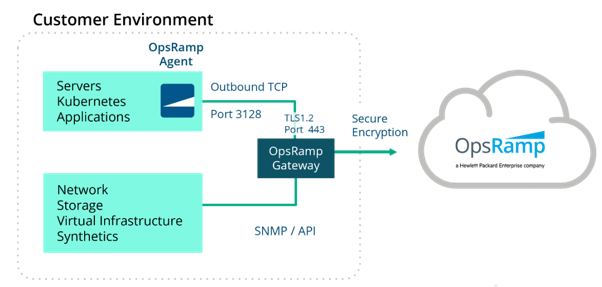
Gateway collector appliance installation and activation procedure
You then proceed as follows to install the gateway collector appliance on your HPE OpsRamp service environment:
Select the client account you created in the previous step.
In the top navigation menu, select Setup > Account, and click Collector Profiles.
Click +ADD to create a gateway collector profile. The gateway collector profile page opens.

Enter a Profile Name and a Description for your gateway.
Select a Classic gateway or a NextGen gateway image based on your environment. In our example, the recommended NextGen gateway is deployed. You can use an ISO (International Organization for Standardization) or OVA (Open Virtual Appliance) image to run the NextGen gateway on a VMware virtual machine. If you want to run the NextGen gateway in your own Kubernetes environment, select the Cloud-Native Application (Installer).
Here, we install the NextGen gateway collector OVA as a virtual machine on a VMware ESXi server.

Note: You can click the ellipsis (…) of the selected virtual appliance to view the installation and activation instructions.
Click Next. The gateway profile is displayed.
Click the arrow to download the virtual appliance image in your environment.
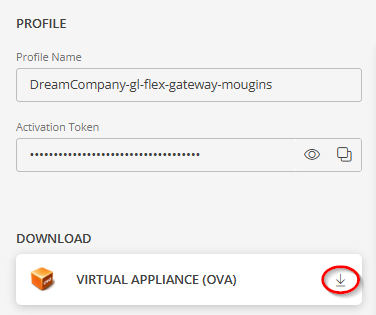
Follow the INSTALLATION instructions to install the gateway collector appliance as a virtual machine on the hypervisor. In our case example, our hypervisor is a VMware ESXi server. The OVA will install Ubuntu Linux Operating System in the virtual machine. Summary of the installation steps:
- Log in to vSphere.
- Deploy the OVF template on your ESXi server or cluster environment. Select the downloaded OVA file.
- Specify a unique name for the virtual machine and a location in your environment.
- Select a compute resource such as an ESXi cluster, ESXi host, or a Resource Pool for the virtual machine.
- Review the detailed information.
- Select a datastore for the virtual machine and use the Thick Provision Lazy Zeroed disk format.
- Select a destination Network for the virtual machine.
- Verify the deployment settings and click FINISH to start creating the virtual machine in the hypervisor.
- Power on the virtual machine.
Next, once the virtual machine is deployed and powered on, apply the ACTIVATION instructions to activate and register the gateway collector appliance on the virtual machine. The activation process takes a few minutes to complete installation of the Kubernetes cluster and activation of the gateway pods in the Kubernetes cluster. The activation process will instruct you to:
- Step 1 — Log in to the gateway collector appliance.
- Step 2 — Set the hostname for the gateway collector appliance and change the default password.
- Step 3 — Install the K3s Kubernetes cluster on the gateway collector appliance.
- Step 4 — Register the gateway collector appliance in the HPE OpsRamp platform.
- Step 5 — Click FINISH when the Activation is completed.
Important note: If you want to assign a static IP address to the gateway appliance, refer to the HPE OpsRamp NextGen gateway installation documentation. Follow these steps before installing the Kubernetes cluster (step 3 above) on the gateway collector appliance.
The activation process will install the K3s Kubernetes cluster on the virtual machine with the main pod (nextgen-gw-0) where the gateway collector code runs, and the storage pod (nextgen-gw-redis-master-0).
When the gateway collector is installed and registered in your HPE OpsRamp service instance, go to Setup > Account > Collector Profiles. The status of the gateway collector appliance should be CONNECTED.

You can also navigate to Infrastructure tab and select Resources > Gateway or use the recommended method: Infrastructure > Search > OTHERS > OpsRamp Gateway, to visualize detailed information about the newly installed and registered gateway collector appliance.

If you see the main pod (nextgen-gw-0) status as Running (color indication green), it means the NextGen gateway is running successfully.
You can also navigate to Dashboard > Classic Dashboard to drill into infrastructure elements of the gateway collector appliance. The dashboard provides an overview of health, performance, and availability of resources and services.
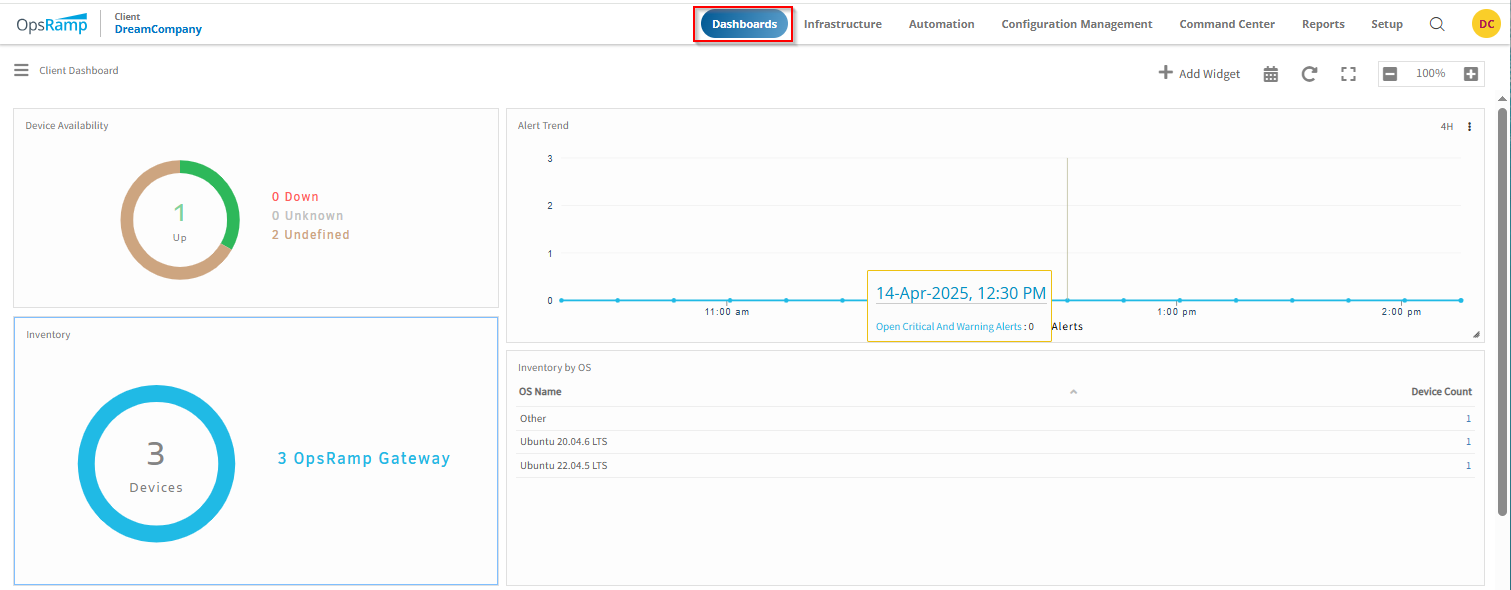
Note: The resource status for the NextGen Gateway Cluster and the NextGen Gateway Node are shown as Undefined (color indication brown). This is expected because no availability monitor is assigned to these two resources. To monitor the NextGen Gateway Node, you will need to assign a cloned version of the Global Monitoring Template Agent G2 – Linux OS Performance Monitoring. Refer to the next blog post to learn how to assign a Monitoring Template to a resource.
Whitelisting IP addresses to improve network access security
HPE recommends restricting a specific set of IP addresses by whitelisting them within your firewall for outbound connection to the hybrid observability service in the cloud. The whitelist is based on your regional deployment of HPE OpsRamp service in the HPE GreenLake workspace. See the HPE OpsRamp Collector Whitelisted IP Addresses documentation.
Summary
This blog post helps you get started with the initial configuration of the hybrid observability service powered by HPE OpsRamp Software to enable the discovery of IT infrastructure devices included in HPE GreenLake Flex Solutions.
The initial setup consists of:
- Creating a tenant (client account) of the Partner account for your organization.
- Managing HPE GreenLake users’ roles.
- Installing and registering a gateway collector appliance, a prerequisite to enable the discovery and monitoring of physical devices.
Don’t miss part 3 and Part 4 of this blog series, where I’ll further explore the integration set up activities to discover infrastructure resources, start monitoring resources and viewing metrics and alerts.
There’s also a series of video tutorials on the Hybrid observability in HPE GreenLake Flex Solutions landing page that walks you through the contents described in this blog series for readers who prefer an audio-visual learning experience.
To resolve issues with HPE GreenLake Flex Solutions or hybrid observability service powered by HPE OpsRamp, contact the support team. While logged in to your HPE GreenLake workspace:
- Click Help & Support.
- Under Help, select OpsRamp or HPE GreenLake Flex Solutions.
- Click Create New Case.
Related
Hybrid observability service – Part 3: Enabling the monitoring of agentless SSH-enabled systems in HPE GreenLake Flex Solutions
May 26, 2025Hybrid observability service – Part 1: Provisioning and activation in HPE GreenLake Flex Solutions
May 22, 2025Hybrid observability service – Part 4: Enabling the monitoring of physical devices in HPE GreenLake Flex Solutions
May 27, 2025
Model Context Protocol (MCP): The universal connector for AI applications
Aug 12, 2025
OpsRamp OpsQL API: Fulfilling wishes for IT Ops management
Mar 10, 2025