
Create a General-Purpose Kubeconfig File in HPE GreenLake for Private Cloud Enterprise
May 20, 2022Editor’s Note – NAME CHANGE: HPE GreenLake for Containers is now part of HPE GreenLake for Private Cloud Enterprise.
Introduction
HPE GreenLake for Containers, one of the HPE GreenLake Cloud services, is built on the CNCF certified HPE Ezmeral Runtime Enterprise and deployed as an enterprise-grade container management service using open source Kubernetes. The HPE GreenLake for Containers service is accessed and managed through one portal, called HPE GreenLake Central. The HPE GreenLake Central dashboard allows you to open the Clusters screen to create Kubernetes clusters using cluster blueprints, view details about existing clusters, and launch the HPE Ezmeral Runtime Enterprise dashboard, where you can view the status of all Kubernetes services and resource utilization across all clusters. The HPE Ezmeral Runtime Enterprise dashboard also allows you to download the kubectl binary, together with the kubeconfig file, to access and deploy applications using the client script. In this blog post, I will describe issues that are associated with this specific kubeconfig file downloaded from the dashboard and show you how to get around them.
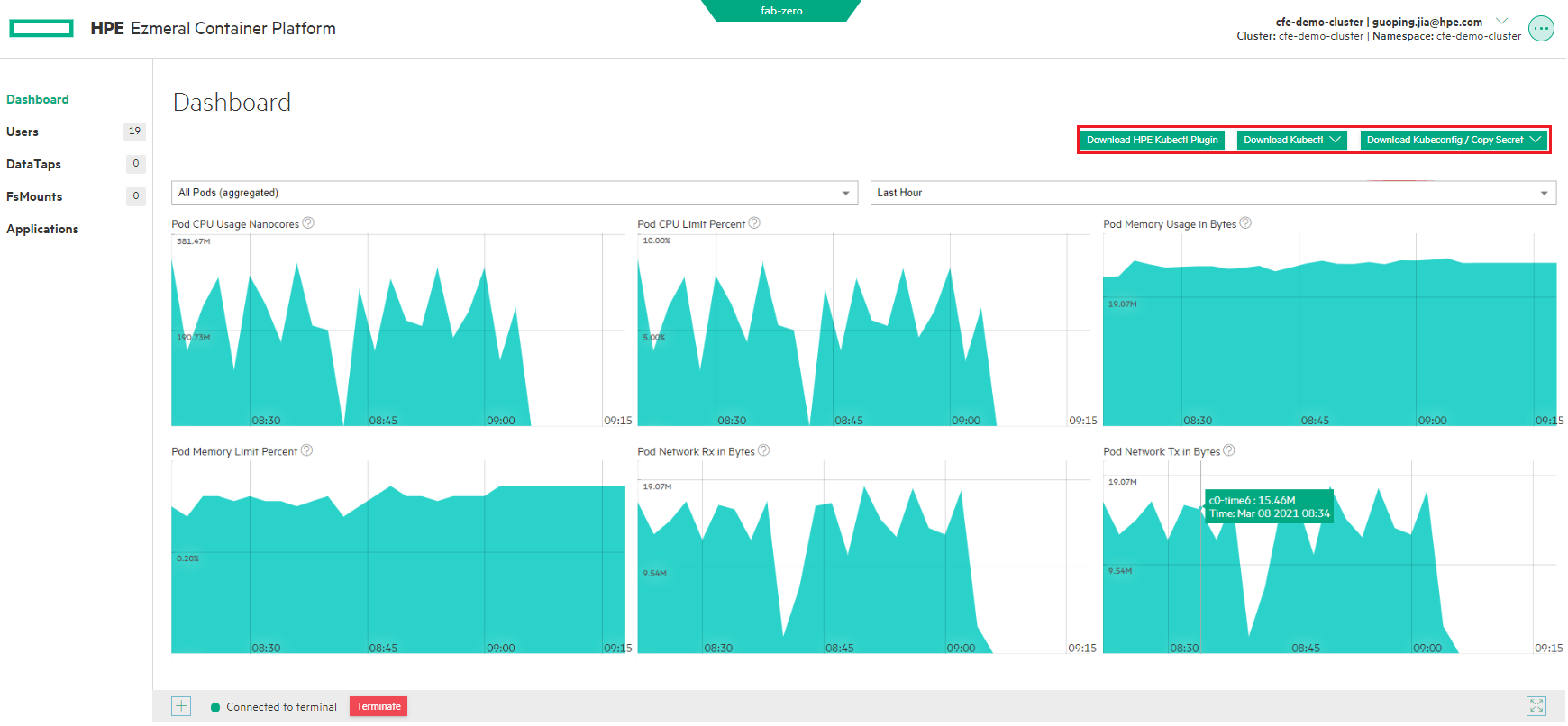
The kubeconfig file that can be downloaded from the HPE Ezmeral Runtime Enterprise dashboard can introduce a number of issues:
The kubeconfig file is tied to the user who logs in to HPE GreenLake for Containers. There are many use cases that use simple scripts, such as in Bash, that call out to the kubectl or a proper client library to access the Kubernetes cluster with the kubeconfig file outside the cluster. They are not tied to any particular user. Providing a kubeconfig file that’s tied to your user is not considered to be a clean design due to the fact that each user may have different privileges, and providing the kubeconfig file with ability to access to the cluster may violate the Principle of Least Privilege.
Since launching from HPE GreenLake Central to the HPE Ezmeral Runtime Enterprise is configured through SAML SSO, a session token is fetched and added to the kubeconfig file each time you launch the HPE Ezmeral Runtime Enterprise dashboard. With HPE GreenLake for Containers, the session token is configured to expire after an hour. You will be unable to use the downloaded kubeconfig file to access the cluster after the token expires. You will have to relaunch the dashboard and once again download the kubeconfig file.
The kubeconfig file is generated to include some specific commands to show version, authenticate, and refresh the HPE Ezmeral Runtime Enterprise environment. The standard kubectl tool installed from the official Kubernetes site does not work with this kubeconfig file. You have to download the
HPE kubectl plugin, available from the same dashboard, and use it together with the kubectl and the kubeconfig file. This causes issues due to the fact that some services and tools, such asAzure DevOpsandJenkins, use the standard kubectl to access and deploy applications to the Kubernetes clusters.
You need a way to have a kubeconfig file that is not tied to a specific user and has the right set of permissions to access the Kubernetes cluster. It should work permanently with the standard kubectl tool. This blog post walks you through the process of creating such a general-purpose kubeconfig file that allows you to access and deploy applications to the Kubernetes cluster in HPE GreenLake for Containers. By using these instructions, you will be able to create a kubeconfig file that can be used by any external scripts specific to your CI/CD pipeline setup and have them work with the Kubernetes cluster.
Prerequisites
You need to download the kubectl binary, together with the HPE kubectl plugin and the kubeconfig file, from the launched HPE Ezmeral Runtime Enterprise dashboard. The downloaded kubectl binary and its plugin need to be set up in your environment. To simplify the setup process, you should export the environment variable KUBECONFIG and point it to the downloaded kubeconfig file. With these setups in place, you can access the Kubernetes cluster in the HPE GreenLake for Containers.
With your user access setup, you should have access to permissions that can create and update the following resources in the Kubernetes cluster:
- Kubernetes Service Account(s)
- Kubernetes Roles & RoleBindings
Setup Details
Create a Kubernetes Service Account
You can use the following yaml manifest file to create a service account in the Kubernetes cluster. Replace the name cfe-demo-sa with your service account name.
# serviceaccount.yml
---
apiVersion: v1
kind: ServiceAccount
metadata:
  name: cfe-demo-sa
Run the following commands to create the service account and verify that the service account has been created:
$ kubectl apply -f serviceaccount.yaml
serviceaccount/cfe-demo-sa created

$ kubectl get serviceaccounts cfe-demo-sa
NAME          SECRETS   AGE
cfe-demo-sa   1         24s
Create a Role
After you have the service account, you can create a role with a set of permissions that represent the access rights that you want for your scripts.
Here is the yaml manifest file to create a role. Replace the cfe-demo-role with your role name.
# role.yml
---
apiVersion: rbac.authorization.k8s.io/v1
kind: Role
metadata:
  name: cfe-demo-role
rules:
- apiGroups:
  - ""
  resources:
  - bindings
  - podtemplates
  - replicationcontrollers
  - pods
  - services
  - serviceaccounts
  - endpoints
  - persistentvolumeclaims
  - events
  - configmaps
  - secrets
  - pods/exec
  - pods/log
  - pods/portforward
  verbs:
  - '*'
- apiGroups:
  - rbac.authorization.k8s.io
  resources:
  - roles
  - rolebindings
  verbs:
  - '*'
- apiGroups:
  - apps
  resources:
  - controllerrevisions
  - statefulsets
  - deployments
  - replicasets
  - daemonsets
  verbs:
  - '*'
- apiGroups:
  - autoscaling
  resources:
  - horizontalpodautoscalers
  verbs:
  - '*'
- apiGroups:
  - batch
  resources:
  - cronjobs
  - jobs
  verbs:
  - '*'
The Using RBAC Authorization section of the Kubernetes documentation provides details on how to configure the Role resource. Please check carefully the permissions for the access rights that you want for your scripts in order to comply with the Principle of Least Privilege.
Run the following commands to create the role and verify that the role has been created:
$ kubectl apply -f role.yaml
role.rbac.authorization.k8s.io/cfe-demo-role created

$ kubectl get role cfe-demo-role
NAME            CREATED AT
cfe-demo-role   2022-05-19T20:51:57Z
Grant Permissions to Service Account
You now create the RoleBinding to bind the role to the service account.
Here is the manifest file to create the RoleBinding that binds the role cfe-demo-role to the service account cfe-demo-sa. Replace those names with the names in your environment.
# rolebinding.yml
---
apiVersion: rbac.authorization.k8s.io/v1
kind: RoleBinding
metadata:
  name: cfe-demo-rb
roleRef:
  apiGroup: rbac.authorization.k8s.io
  kind: Role
  name: cfe-demo-role # Should match name of Role
subjects:
- kind: ServiceAccount
  name: cfe-demo-sa # Should match service account name
Run the following commands to create the rolebinding and verify that the rolebinding has been created:
$ kubectl apply -f rolebinding.yaml
rolebinding.rbac.authorization.k8s.io/cfe-demo-rb created

$ kubectl get rolebindings cfe-demo-rb
NAME          ROLE                 AGE
cfe-demo-rb   Role/cfe-demo-role   19s
Extract Service Account Token
You can now check the secret token in the created service account and extract the token field by running the following commands. The token is a randomized string. The setup shows only a snippet of this string.
$ kubectl describe serviceaccounts cfe-demo-sa
Name:                cfe-demo-sa
Namespace:           cfe-demo-cluster
Labels:              <none>
Annotations:         Image pull secrets:  <none>
Mountable secrets:   cfe-demo-sa-token-2zlzf
Tokens:              cfe-demo-sa-token-2zlzf
Events:              <none>

$ kubectl describe secrets cfe-demo-sa-token-2zlzf
Name:         cfe-demo-sa-token-2zlzf
Namespace:    cfe-demo-cluster
Labels:       <none>
Annotations:  kubernetes.io/service-account.name: cfe-demo-sa
              kubernetes.io/service-account.uid: a467f9bd-655d-413f-ad77-5156d03d2322

Type:  kubernetes.io/service-account-token

Data
====
ca.crt:     1066 bytes
namespace:  16 bytes
token:      iIsImtpZCI6IjA2YnhmSVZrVDRGWnBab0VOYXhnWFBTTE1WWmptUm40eER
Note that if you use -o yaml instead of describe in the commands, you get a base64-encoded version of the token. You must decode it before you use it.
If you access the Kubernetes API directly, e.g., from curl, you can use the token as the bearer token for the authorization header.
However, if you have your scripts running outside the cluster that uses kubectl or a client library to access the Kubernetes cluster, you need the kubeconfig file to load the configs from. Follow the instructions in the next section to create such a kubeconfig file.
Create a Kubeconfig File
Here is a shell script to create a kubeconfig file using the secret token of the service account. Update those variables in the script header to match with your environment.
# create-kubeconfig.sh

# Update those variables to match your environment
SERVICE_ACCOUNT_NAME="cfe-demo-sa"
CONTEXT=$(kubectl config current-context)
NEW_CONTEXT="cfe-demo-context"
TOKEN_USER="cfe-token-user"
KUBECONFIG_FILE="kubeconfig-sa"


# Extract service account token
SECRET_NAME=$(kubectl get serviceaccount ${SERVICE_ACCOUNT_NAME} --context ${CONTEXT}  -o jsonpath='{.secrets[0].name}')
TOKEN_DATA=$(kubectl get secret ${SECRET_NAME}  --context ${CONTEXT}  -o jsonpath='{.data.token}')
TOKEN=$(echo ${TOKEN_DATA} | base64 -d)

#Create a general-purpose kubeconfig file
kubectl config view --raw > tmp.raw
kubectl --kubeconfig tmp.raw config use-context ${CONTEXT}
kubectl --kubeconfig tmp.raw config view --flatten --minify > tmp.min
kubectl --kubeconfig tmp.min config rename-context ${CONTEXT} ${NEW_CONTEXT}
kubectl --kubeconfig tmp.min config set-credentials ${TOKEN_USER} --token ${TOKEN}
kubectl --kubeconfig tmp.min config set-context ${NEW_CONTEXT} --user ${ TOKEN_USER }
kubectl --kubeconfig tmp.min config view --flatten --minify > ${KUBECONFIG_FILE}

# Cleanup tmp
rm tmp.raw
rm tmp.min
After running the script, a general-purpose kubeconfig file kubeconfig-sa is created. By exporting the kubeconfig file as the environment variable KUBECONFIG, you can access the Kubernetes cluster and check all the resources deployed in the cluster.
$ bash create-kubeconfig.sh
Switched to context "fab-zero-cfe-demo-cluster-cfe-demo-cluster-guoping.jia@hpe.com".
Context "fab-zero-cfe-demo-cluster-cfe-demo-cluster-guoping.jia@hpe.com" renamed to "cfe-demo-context".
User "cfe-token-user" set.
Context "cfe-demo-context" modified.

$ export KUBECONFIG=kubeconfig-sa

$ kubectl get all
No resources found in cfe-demo-cluster namespace.
Conclusion
This blog post shows you how to create a general-purpose kubeconfig file using a service account. This kubeconfig file is not tied to any specific user. It is bound with a list of permissions carefully chosen for your need to access the Kubernetes cluster. The created kubeconfig file works permanently with both the downloaded kubectl binary from HPE GreenLake for Containers dashboard and the standard one installed from the official Kubernetes site. This allows you to use it in any Kubernetes client scripts, esp., in your Kubernetes CI/CD pipeline.
It should be noted that the token in a service account does not expire and is valid as long as the service account exists. You should consider to generate a new kubeconfig file by creating a new service account and then revoke access to the old service account. As one best practice for security, you should do this as often as you can. This is extremely important when you use the kubeconfig file to access the Kubernetes cluster from outside the cluster. You can refer to the Kubernetes RBAC Good Practices to understand the risks using RBAC and the general good practices to reduce the risk.
Please check the HPE GreenLake Central User Guide for more details about the HPE GreenLake for Containers.
Related

A guide to enabling a managed Istio service mesh in a Kubernetes cluster on HPE GreenLake for Private Cloud Enterprise
Feb 16, 2023
Using HPE GreenLake Console's API Gateway for Data Services Cloud Console
Nov 30, 2021Automate ITOps: announcing foundational APIs for the HPE GreenLake edge-to-cloud platform
Dec 1, 2023
Bare metal provisioning on HPE GreenLake using Terraform
Mar 20, 2023
Bulk onboarding of users in HPE GreenLake edge-to-cloud platform
Apr 24, 2024
Configuring Azure AD as the SAML IDP with HPE Greenlake Cloud Platform and Aruba Central
Jul 11, 2022How to implement a single sign-on solution to authenticate users onto the HPE GreenLake edge-to-cloud platform
Nov 29, 2023