

The shift from scripts to conversations in storage management
Interacting with storage infrastructure today often means navigating dashboards, writing scripts, or manually stitching together API calls. While powerful, these approaches can slow down operations and create a gap between intent and execution, especially when quick insights or actions are needed.
What if you could request:
Which arrays are running low on capacity?
Create a volume for this workload.
And have those actions carried out reliably?
In this post, I’ll show you how to use the Model Context Protocol (MCP) with Visual Studio Code and GitHub Copilot to enable natural language interaction with storage systems. By leveraging Data Service Cloud Console (DSCC)'s open API specification, you can expose storage operations as AI-understandable capabilities, turning everyday management tasks into simple, conversational workflows.
From queries to actions: AI-driven storage control
The foundation: Why OpenAPI matters
Before MCP and AI came into the picture, there is a critical enabler, a strong OpenAPI specification.
The well-designed OpenAPI spec provides:
- Clearly defined endpoints
- Structured request/response schemas
- Consistent naming and semantics
This structure is what makes it possible to:
- Programmatically understand capabilities
- Automatically generate tools
- Reliably map user intent to actions
Without a solid API foundation, exposing capabilities to AI would be inconsistent and error-prone.
The shift: From APIs to intent-driven operations
Most storage platforms already provide rich APIs. However, APIs are typically structured and require users to:
- Understand endpoints and payloads
- Refer to documentation
- Write and execute requests

MCP serves as the translation layer, converting human intent into executable API calls.
Note: While this blog article demonstrates the setup using Visual Studio Code and GitHub Copilot, MCP clients are not limited to Visual Studio Code. Any compatible AI client can interact with the MCP server. For more information, refer to this page.
Security and Authorization
While MCP introduces a new conversational interface for interacting with storage infrastructure, it does not introduce a new security model. Every request initiated through the DSCC MCP server is authenticated and authorized using the same mechanisms that protect the Data Services Cloud Console APIs. As a result, AI assistants operate within the permissions of the authenticated user and cannot perform actions beyond the privileges already granted.
Bearer Token Authentication
DSCC public APIs are secured using OAuth 2.0 bearer tokens. Every API request initiated by the MCP server must include a valid bearer token in the Authorization header:
Authorization: Bearer <access_token>
The bearer token represents the authenticated identity and associated permissions of the HPE GreenLake account accessing DSCC resources. As a result, every request executed by an AI assistant through the MCP server is evaluated against the same authorization policies as any other DSCC API request.
The security model is built on three core principles:
- Bearer tokens are short-lived and security-scoped.
- Tokens are supplied to the MCP server as standard HTTP request headers.
- The MCP server never bypasses or elevates DSCC authorization checks.
Important: MCP enables new interaction patterns, not new privileges. Exposing DSCC functionality through AI assistants does not weaken the platform's existing security posture.
Bearer Token Lifetime and Expiration
For security reasons, DSCC bearer tokens are issued with a limited lifetime. Once a token expires, API requests using that token will fail with an authorization error until a new token is obtained.
When integrating with the MCP server, clients should treat token expiration as part of the normal authentication lifecycle.
Keep the following considerations in mind:
- Token lifetime is controlled by the HPE GreenLake authentication service.
- Bearer tokens are intended to be short-lived credentials and should never be treated as permanent secrets.
- Applications should anticipate token expiration and implement automatic renewal mechanisms.
Since token lifetimes may vary depending on the deployment environment or authentication configuration, client applications should avoid hardcoding expiration assumptions and instead rely on programmatic renewal workflows.
Obtaining a DSCC Bearer Token
DSCC APIs use OAuth 2.0 bearer tokens issued by the HPE GreenLake authentication service.
To obtain a bearer token, first create a Personal API Client in your DSCC workspace and then use it to generate an access token. Refer to the HPE GreenLake documentation for detailed instructions on creating a Personal API Client and generating an access token.
Note:
- Bearer tokens have a limited lifetime. When a token expires, generate a new token by repeating this process.
- A Personal API Client is scoped to a single DSCC workspace. If you need to access resources in multiple workspaces, you must create a separate Personal API Client and generate a corresponding access token for each workspace.
Setting up MCP with Visual Studio Code
To get started, you configure an MCP server locally and connect it to your API layer. Before setting up and using the MCP server, ensure the following prerequisites are met:
- Install Node.js (version 18.0 or later)
- Install and sign in to GitHub Copilot with an active license
Step 1: Configuring an Model Context Protocol (MCP) server
In Visual Studio Code, start by opening an empty folder. Inside this folder, create a ‘.vscode’ directory to store your workspace configurations. Within the .vscode folder, add a JSON configuration file with the following details:
{
  "servers": {
    "fleet-openapi": {
      "type": "stdio",
      "command": "npx",
      "args": [
        "-y",
        "@ivotoby/openapi-mcp-server",
        "--api-base-url", BASE_URL,
        "--headers", "Authorization:Bearer BEARER_TOKEN",
        "--openapi-spec", "https://console-us1.data.cloud.hpe.com/doc/api/v1/storage-api.yaml",
        "--name", "fleet-openapi",
        "--tools", "all",
        "--tag", "storage-systems",
        "--tag", "headroom",
        "--tag", "capacity",
        "--tag", "performance",
      ]
    }
  }
}
Generate the access token as mentioned above. Replace the BEARER_TOKEN with the generated access token. Bearer tokens are short-lived and security-scoped; they should not be treated as static secrets. When a token expires, update it in the JSON file, reload the Visual Studio Code window, and restart the MCP server.
- server-name → A unique identifier for the MCP server instance.
- type → Specifies how the MCP server communicates (e.g., stdio, http).
- command → The executable used to start the MCP server (e.g., npx).
- args → Command-line arguments passed to the MCP server at startup.
- api-base-url → Base endpoint of the backend service that the MCP server will call.
- openapi-spec → Path to the OpenAPI file used to generate tools.
- headers → HTTP headers (like authentication tokens) sent with API requests.
- tools → Controls which capabilities (APIs/actions) are exposed to the AI.
- "tools": "all" → Exposes all available tools without filtering.
- tag → Filters tools based on OpenAPI tags (logical grouping).
Endpoints are the base URLs to which API requests are sent. HPE Block Storage provides region-specific endpoints, and the endpoint you use depends on the region where your Data Services Cloud Console (DSCC) instance is deployed.
The following endpoint URLs correspond to the supported DSCC regions as of June 2026. Since endpoint information may change over time, refer to the latest documentation to verify the most current and supported endpoint URLs.
- US West: https://us-west.api.greenlake.hpe.com
- EU West: https://eu-west.api.greenlake.hpe.com
- EU Central: https://eu-central.api.greenlake.hpe.com
- AP NorthEast: https://ap-northeast.api.greenlake.hpe.com
Restricting Operations for Safer Execution:
Since MCP enables AI-driven interaction with your storage systems, it’s important to control what actions are allowed, especially in production environments.
Using the --operation flag, you can restrict the MCP server to specific HTTP methods.
{
  "servers": {
    "fleet-openapi": {
      "type": "stdio",
      "command": "npx",
      "args": [
        "-y",
        "@ivotoby/openapi-mcp-server",
        "--api-base-url", "https://fleetscale-app.qa.cds.hpe.com",
        "--headers", "Authorization:Bearer BEARER_TOKEN",
        "--openapi-spec", "https://console-us1.data.cloud.hpe.com/doc/api/v1/storage-api.yaml",
        "--name", "fleet-openapi",
        "--tools", "all",
        "--operation", "get",
        "--tag", "storage-systems",
        "--tag", "headroom",
        "--tag", "capacity",
        "--tag", "performance",
      ]
    }
  }
}
This limits MCP to read-only APIs, preventing any create, update, or delete actions.
This is useful for:
- Safe initial adoption
- Monitoring and reporting use cases
- Security-sensitive environments
You can gradually enable additional operations as needed, with proper guardrails in place.
This configuration starts the MCP server locally, loads the OpenAPI specification, and exposes the APIs as MCP tools. It also passes the required authentication headers for API calls. To apply the changes, reload the Visual Studio Code window using Ctrl + Shift + P → “Developer: Reload Window.”
Note: Ensure your organization approves the use of MCP and AI tools, and that all integrations comply with internal security and cybersecurity policies before use.
Step 2: Connect with GitHub Copilot and start the MCP server
In Visual Studio Code, install the GitHub Copilot extension and sign in with your GitHub account to start using it.
To start the MCP server, open the Command Palette (Ctrl+Shift+p) and select ‘MCP: List Servers’. You should see the server configured in your JSON file (for example, fleet-openapi) listed there.
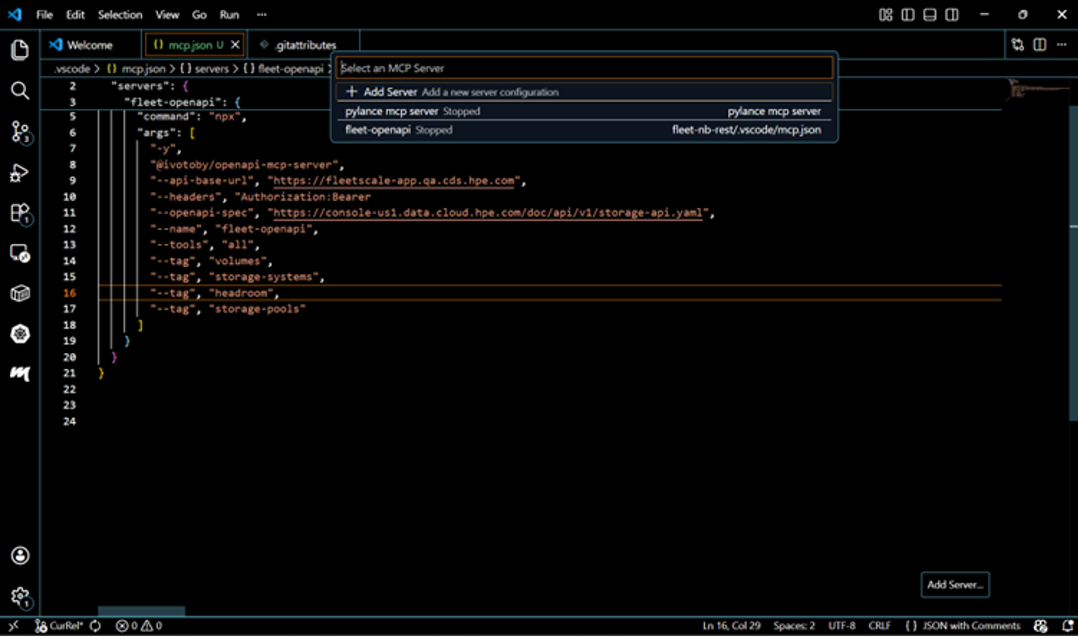
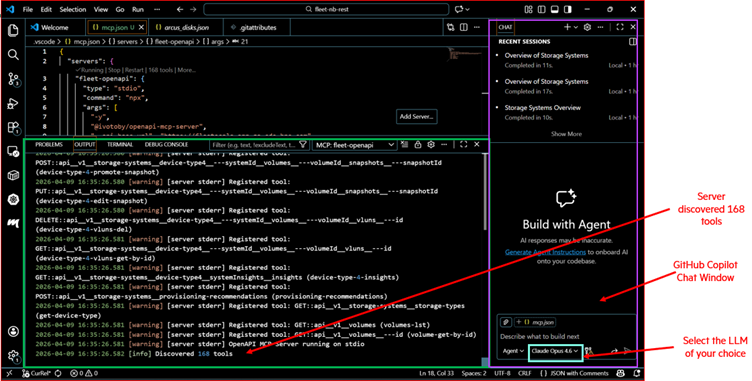
Select the configured server and click “Start Server”. Once the server is up and running, you should see a confirmation in the console similar to the example below.
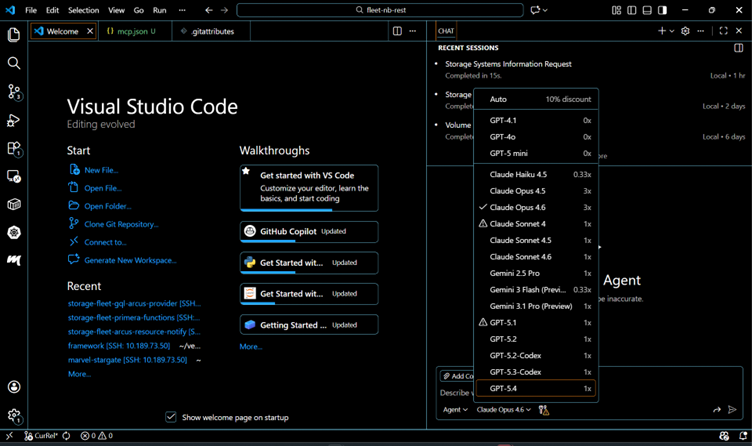
The GitHub Copilot extension allows you to choose from supported LLMs based on your subscription and configuration, as shown below.
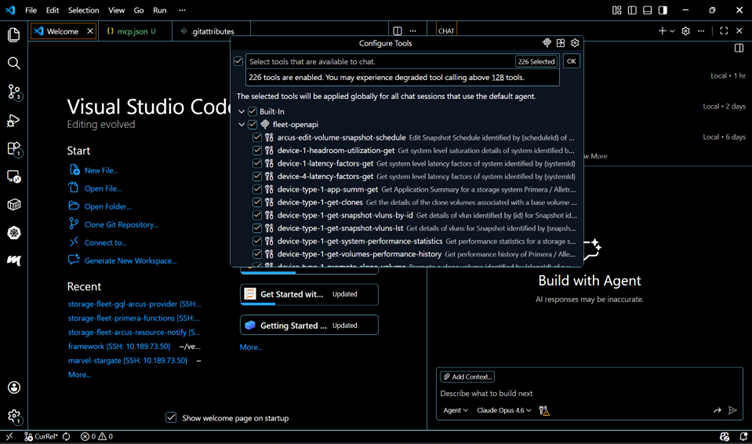
GitHub Copilot can leverage the tools discovered by the MCP extension in Visual Studio Code. You can also view the discovered tools using the Command Palette (Ctrl + Shift + P) by searching for MCP-related commands.
Step 3: Interacting using natural language
Once everything is set up, you can begin issuing natural language queries.
Examples:
- List all storage arrays
- Identify arrays above 80% capacity
- Create a 100GB volume on a specific array
- Check overall system health
These queries are interpreted, mapped to MCP tools, and executed via DSCC APIs.
For example, consider the following prompt where the user asks to list storage system details:
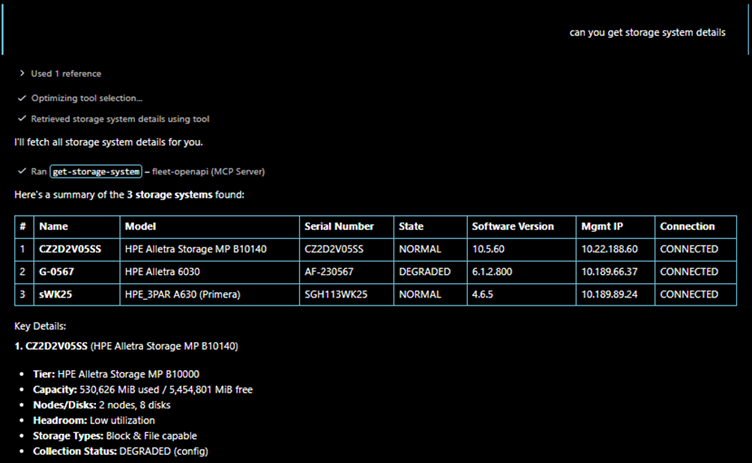
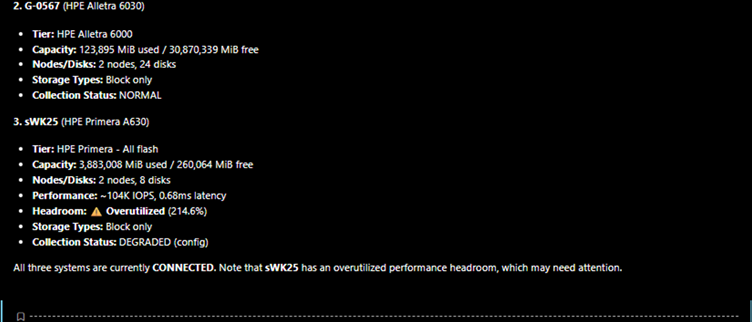
Note: The behaviour and responses may vary depending on the LLM used, as different models can interpret prompts and execute actions with varying accuracy and reasoning.
What happens behind the scenes
- The user enters a natural language query (in this case, requesting storage system details)
- Copilot interprets the intent and identifies the relevant operation (e.g., list storage systems)
- The MCP client discovers available tools from the MCP server and selects the most relevant one based on the intent.
- The MCP server maps the request to the corresponding API (derived from the OpenAPI specification) and executes it via DSCC, passing the required authentication headers configured in the server JSON.
- The API returns a structured response, which is then relayed back through the MCP server.
- Structured response is returned
- The response is presented to the user, often enriched with additional insights (for example, highlighting potential issues such as performance headroom overutilization).
This removes the need to manually:
- Write API calls
- Look up documentation
- Handle request formatting
- Parse responses
Important: Please ensure that the user does not have admin or superuser privileges, as the project is still in its early stages and requires further enhancements in RBAC and guardrails. For safer execution, use the operation tag appropriately.
Relationship to HPE GreenLake MCP documentation
The DSCC MCP integration follows the same core patterns as the GreenLake MCP setup.
You can refer to the GreenLake documentation for:
- MCP server setup
- Tool definitions
- Request/response flow
HPE GreenLake MCP references can be found here.
While DSCC APIs and authorization differ, the overall MCP concepts and configuration remain largely the same and can be reused with minimal changes.
Conclusion: From APIs to conversation
What makes this transformation possible is not just MCP or AI, it’s the combination of a strong OpenAPI foundation and a protocol that can leverage it effectively. By layering MCP on top of a well-defined API ecosystem like DSCC, you can unlock a new interaction model where users express intent and systems handle execution.
With tools like Visual Studio Code and GitHub Copilot, users can now manage storage systems using natural language, reducing complexity and speeding up operations.
Key takeaway
Great APIs don’t just enable integrations—they enable entirely new ways of interaction.
And MCP doesn’t replace APIs—it enhances how we interact with them.
It does so by combining:
- OpenAPI specifications
- MCP server
- AI assistants
This enables a shift from script-driven operations to intent-driven interactions.
Call to action:
- Start by exploring your existing OpenAPI specifications. Identify a few key operations and expose them through an MCP server. Try interacting with them using natural language in Visual Studio Code with GitHub Copilot.
- If you have questions or want to explore deeper integrations, feel free to reach out anusha.y@hpe.com or continue experimenting. This is just the beginning of conversational infrastructure.
- Please check out the HPE DEV blog for more articles on this topic.
Related

AI DevCon 2026: Why the future of enterprise AI is a data and storage engineering problem
Apr 3, 2026
Artificial Intelligence and Machine Learning: What Are They and Why Are They Important?
Nov 12, 2020
Bring your agent to the next level - Introduce LiteLLM for MCP Cost management and Guardrails
Aug 26, 2026Bringing AI assistants to GreenLake with MCP Servers
Dec 3, 2025
Closing the gap between High-Performance Computing (HPC) and artificial intelligence (AI)
Sep 15, 2023Demystifying AI, Machine Learning and Deep Learning
Nov 25, 2020Deploying a Small Language Model in HPE Private Cloud AI using a Jupyter Notebook
Feb 20, 2025